


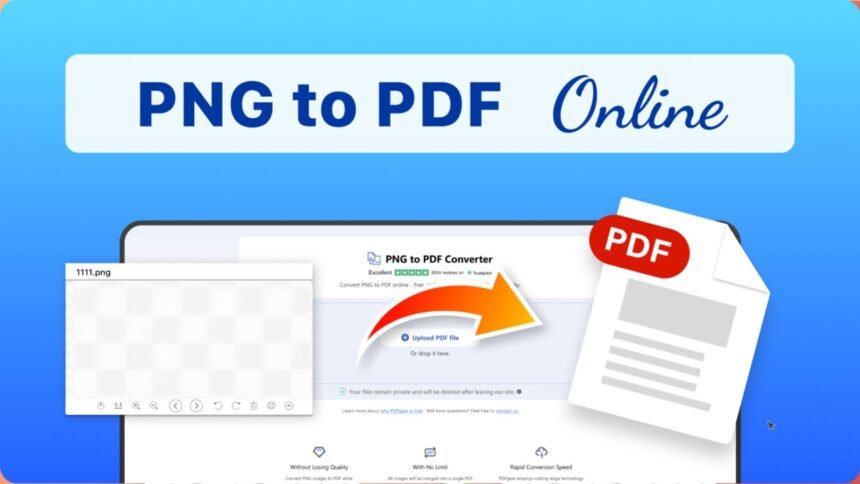
Need to turn a PNG file into a PDF? Whether you’re converting a single screenshot, combining multiple PNGs into one document, or just need a quick way to change a PNG file to PDF without installing software, this guide covers every method — including how to do it on Mac. Everything below can be done for free using pngtopdf.pics, directly in your browser.
Why Convert PNG to PDF?
PNG is a great format for screenshots, graphics, and transparent images, but it’s not always the right format to share or submit. Converting to PDF is useful when:
- A form or portal requires PDF uploads — many job applications, school submissions, and government forms only accept PDFs, not image files
- You need to send multiple PNGs as one document — instead of attaching ten separate files, you send one clean PDF
- You want consistent formatting across devices — PDFs display identically everywhere, while PNGs can render differently depending on the app or screen
- You need to print it properly — PDFs preserve scale and layout better than raw image files
- You’re archiving documents — PDF is a more standard, long-term format for storing scanned pages or records
How to Convert PNG to PDF (Step-by-Step)
- Go to pngtopdf.pics — no account, download, or sign-up needed.
- Upload your PNG file(s). Drag and drop one or several PNG files into the upload area, or click to browse your device.
- Reorder if needed. If you’re converting more than one PNG, drag the thumbnails into the order you want them to appear.
- Click “Convert to PDF.” Your PNG (or PNGs) will be turned into a single, properly formatted PDF.
- Download your file. Save it, email it, or upload it wherever it’s needed.
The whole process takes seconds, there’s no watermark on your final PDF, and your files aren’t stored longer than necessary to complete the conversion.
How to Combine or Merge Multiple PNG Files into One PDF
If you have several PNG files — like scanned pages, screenshots, or graphics — that you want combined into a single PDF instead of converting them one by one, the process is just as simple:
- Upload all the PNG files you want to combine at once.
- Drag to arrange them in the correct order.
- Click convert — all your PNGs will be merged into a single multi-page PDF, not separate files.
- Download the combined PDF.
This is especially useful for things like combining scanned receipts, multi-page worksheets, or a set of design mockups into one shareable file.
How to Convert PNG to PDF Online for Free
You don’t need to pay for software or download a desktop app to do this. Free online converters like pngtopdf.pics work entirely in your browser:
- No installation required
- No account or email sign-up
- Works on Windows, Mac, Chromebook, or mobile
- No watermark added to your finished PDF
- Files are processed securely and not stored long-term
This makes it a faster option than most desktop PDF software, especially if you only need to convert a file occasionally rather than regularly.
How to Convert PNG to PDF on Mac
Mac users have a couple of options, depending on whether you want a built-in tool or a faster browser-based method:
Using Preview (built-in):
- Open the PNG file in Preview.
- Go to File > Export as PDF.
- Choose a save location and click Save.
This works fine for converting a single image, but if you’re combining multiple PNGs, you’ll need to open the sidebar (View > Thumbnails), drag each image in, arrange them, and then export — which takes a few extra steps.
Using pngtopdf.pics:
- Open the site in Safari or Chrome.
- Upload your PNG file(s) from Finder or your desktop.
- Click convert and download.
This method works identically whether you’re converting a single picture, an image, a photo, or several PNGs at once — and it’s noticeably quicker than exporting through Preview when you have more than one file to combine.
Whether you’re searching for how to turn a photo into a PDF on Mac, how to make an image a PDF on Mac, or simply how to save a picture as a PDF on Mac, the steps above apply the same way — Mac doesn’t distinguish between these file types for this purpose, and neither does the converter.
Tips for Best Results
- Double-check orientation before converting. A sideways PNG will convert into a sideways PDF, so rotate it first if needed.
- Combine related PNGs into one PDF rather than sending them separately — it’s cleaner for the recipient and easier to keep organized.
- Keep an eye on file size if you’re converting several high-resolution PNGs at once, since large batches produce larger PDFs that may be harder to email.
- Rename files in order before uploading (e.g., page1.png, page2.png) so they’re easier to arrange correctly during the merge step.
Frequently Asked Questions
Is it free to convert PNG to PDF?
Yes, completely free, with no watermark added to your final PDF and no hidden charges.
Can I combine multiple PNG files into a single PDF?
Yes. You can upload several PNGs at once, arrange them in order, and merge them into one multi-page PDF instead of converting each file separately.
Do I need to install any software?
No. The entire process happens in your browser — no downloads, plugins, or sign-ups required.
Will converting reduce my PNG’s quality?
No, your image retains its original resolution and quality when converted to PDF.
Can I convert PNG to PDF on a Mac without using Preview?
Yes, you can use a free online converter like pngtopdf.pics instead, which works the same in any browser without needing to open Preview manually.
Does this work on mobile devices too?
Yes, the tool works in any mobile browser on both iPhone and Android, so you can convert or combine PNGs without a computer.
Convert Your PNG to PDF Now
Ready to convert or combine your PNG files into a clean PDF? Try pngtopdf.pics — free, fast, and works on any device in seconds.